As developers we often need to boost our creativity. And what is a better way to do so than with some quality machine art? In my quest for inspiration, I stumbled upon the fantastic tool called Midjourney. It’s like a digital genie who can draw beautiful images for any of my projects or just for fun.
But sometimes, repetitive tasks can be a real challenge.
Imagine this: You’re creating a series of images with the same settings. Like a poster for your blog. Manually arranging the right command every time can be quite cumbersome. Also you might need to generate various formats from time to time, and that’s where the magic of Midjourney comes into play to save us some of the scrolling.
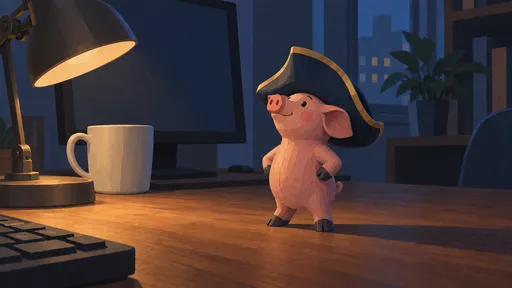
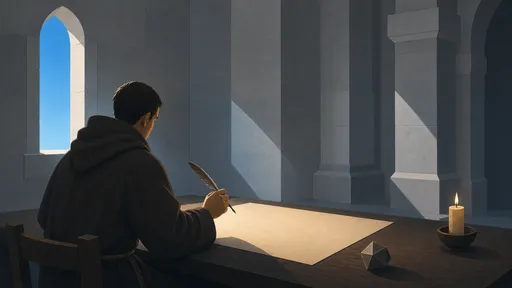
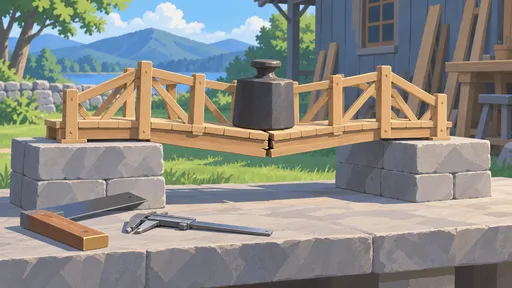
Take, for instance, the images on this blog. They were generated with Midjourney. I once created the preset with all the required parameters. And this trick saves you from wrangling with complex settings repeatedly.
The snippets below are shorthand. In Discord you type /prefer option set, put the preset name into the option field and the parameters into the value field:
/prefer option blog --v 5 --ar 5:2 --q 2 --stylize 1000From then on, it’s smooth sailing. To apply the settings automatically, simply use the command with preset.
/imagine a sunset on distant shores --blogMore Preset Ideas
Here are some presets I find useful:
/prefer option icon --v 5 --ar 1:1 --q 2 --stylize 250 --no text
/prefer option wide --v 5 --ar 16:9 --q 2 --stylize 500
/prefer option portrait --v 5 --ar 2:3 --q 2 --stylize 750
Managing Presets
List all your presets:
/prefer option listDelete a preset you no longer need by setting it again with an empty value:
/prefer option set blogPro Tips
-
Keep stylize low for technical images — high stylize values make everything dreamy, which isn’t great for diagrams or UI mockups.
-
Use
--noliberally —--no text, watermark, logokeeps generated images clean. -
Version matters — each model version handles prompts differently. Lock the version in your preset to keep results consistent.
-
Combine presets with permutations — you can still use
{option1, option2}syntax with presets for variations.
Midjourney presets turn a multi-step process into a single command. Once you find settings that work for your style, save them and forget about parameter juggling.