In many science-fiction films, people interact with computers using voice commands. For example, a person walks into a room and it is dark. “Computer, lights 50%!” he says. “Lights 50% acknowledged!” the computer answers in a pleasant female contralto and salutes, turning on a dim light. Who has not wanted that? But while the very idea of such interaction was born a very long time ago, wandering ever since across the pages of science-fiction books and frames of films, now everything has changed: the availability of high technology close at hand has made many things possible. In Robert Heinlein’s novel The Moon Is a Harsh Mistress (1966), the supercomputer Mike could speak freely, but it took up an enormous amount of space and certainly was not mobile. The hero of my story cannot boast ideal pronunciation or the ability to hold a dialogue, but for its size it is very capable. Of course, I am talking about the Asus EeePC 1000 netbook.
Not long ago I installed the new MS Windows 7 RC operating system on it and could not help getting acquainted with what came in the box. The PowerShell command line and the PowerShell ISE environment interested me most. Somewhere out on the internet there are all kinds of cmdlets for performing almost any task, including speech playback. But I wanted to implement everything through an ordinary function, so as not to depend on installed cmdlets. After all, they might simply not exist on a particular computer, while copying a profile is a matter of a minute. Besides, the recent story with the disappearance, in a new build, of the Get-Clipboard cmdlet for working with the clipboard, for example, makes one wary of overusing rare cmdlets. But .NET classes are not going anywhere, although access to them can also be not the simplest: in this case, the console has to be launched in -sta mode to be able to work with the clipboard.
I use the function-name prefix from one of my nicknames, so that with autocomplete I can quickly get to my homegrown functions by entering just three characters: they do not occur anywhere else in PowerShell commands.
Implementation
function astSpeak(
  [string]$inputString,
  [int]$speed = -2,
  [int]$engine = 0,
  [switch]$file,
  [switch]$list,
  [switch]$buffer,
  [int]$volume = 85
) {
  # Create the object
  $oVoice = New-Object -com "SAPI.spvoice"

  # If a list of voices is requested
  if($list)
  {
    Write-Output "Voices installed in the system: "
    $i = 0
    Foreach ($Token in $oVoice.getvoices())
    {
      Write-Host $i - $Token.getdescription()
      $i++
    }
  }
  # If speech output is requested
  else
  {
    # Get text from a file if the switch is set
    if($file){ $toSpeechText = Get-Content $inputString}
    # Speak text from the clipboard (requires STA mode)
    elseif($buffer){
      $null = [reflection.Assembly]::LoadWithPartialName("System.Windows.Forms")
      $toSpeechText = [Windows.Forms.Clipboard]::GetText() }
    # Use the received string if no switch is set
    else{ $toSpeechText = $inputString}

    # Play it
    $oVoice.rate = $speed
    $oVoice.volume = $volume
    $oVoice.voice = $oVoice.getvoices().item($engine)
    $oVoice.Speak($toSpeechText)
  }
}
What Can the Function Do?
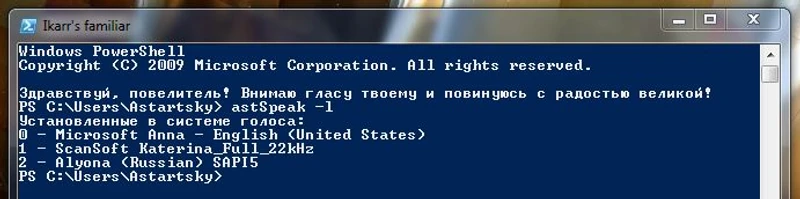
It can print a list of voices installed in the system. There are quite a lot of different voices, including some that can read Russian text. I have the Alyona voice installed as the main one, and it quite successfully passed the test of reading Wikipedia articles and fiction. For the latter, I used Harry Harrison’s short ironic story “The Ultimate Weapon,” taken from Moshkov’s Library. Thanks to the voice, I immediately found several typos in the text and understood the need to place the letter “yo”; otherwise, the reading was impressive. So, to get the list of voice engines, call:
astSpeak -l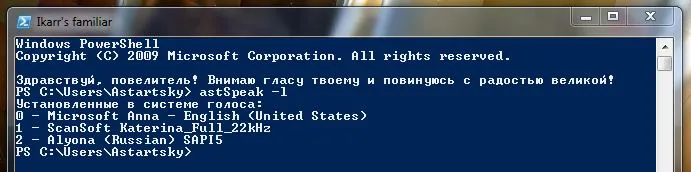
It can read any given text; that is the simplest part.
astSpeak "Hello! My name is Alyona, I am the voice of your computer!"It can read a text file. To do this, specify the corresponding switch and the path to the needed file. For example, like this:
astSpeak -f "D:\Library\Rudyard Kipling\If.txt"Yes… perhaps we will not trust Alyona with poetry anymore :)
It can read text contained in the clipboard. There are some difficulties with implementing this, because the special cmdlet was excluded from the PowerShell package, and access to the clipboard through .NET can be obtained only in STA (Single Threading Apartment) mode, while the PowerShell console starts in MTA by default. The ISE also works in MTA by default. But this is not a problem; it is enough to add the corresponding switch in the console shortcut properties:
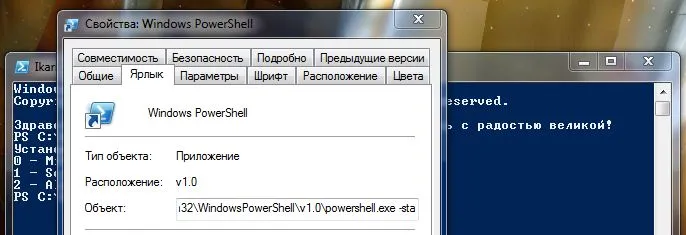
So, if the console mode allows it, it will look like this:
astSpeak -bThe scariest thing is if there was a URL in there.
When calling any mode that implies speech playback, that is, anything except listing voice engines, you can also set the speech speed, voice volume, and voice-engine number. To hear, for example, the word “hello” performed by Katerina (engine number 1), with the volume set to 85/100 and at a slightly increased speed, enter the following command.
astSpeak -e 1 -v 85 -s 3 "Hello"In general, everything really is simple! If you have any comments, advice, or know how all this can be improved, I will be very glad to hear from you.